
On the Home page of a WordPress site I have an Elementor Tabs element with the tab Content being Elementor saved templates.
The Elementor elements in the tabs have icons that are showing up as grey squares and losing styling when I look at the page as an anonymous user. However while logged in as Admin I can see the styling
The site is using WP Fastest Cache
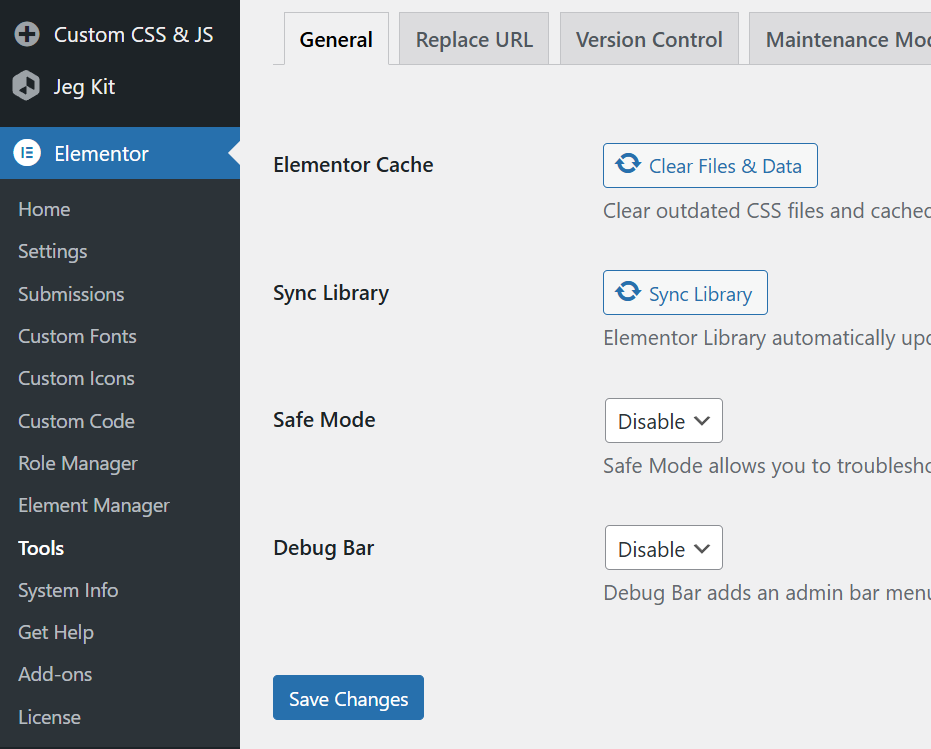
If I turn off WP Fastest Cache and Go Elementors => Tools => Elementor Cache => Clear Files & Data and reload the styling works exactly once and then on refresh the styling is bad again
The Work-A-Round / Fix
- Edit the page in Elementor
- Select the tabs element and click the edit pen icon. An Edit Advanced Tabs admin pane shows on the left.
- Under the Edit Advanced Tabs pane click the Advanced tab
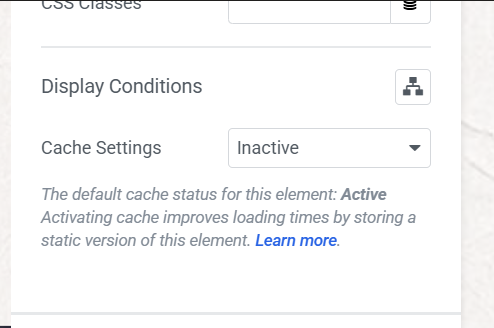
- Under Display Conditions => Cache Settings change if from "Default" to "Inactive"
- Publish the Home Page
- Re-enable WP Fastest Cache clear the Elementor Cache and all WP Fastest Cache caches.
The above steps stop the element from generating cached content and styling and then you can turn on WP Fastest Cache on again and everything works as it should
0 Comments