
VMWare Workstation Pro now uses the underlying Hyper-V infrastructure to provide its functionality
Identify the Hyper-V External Switch
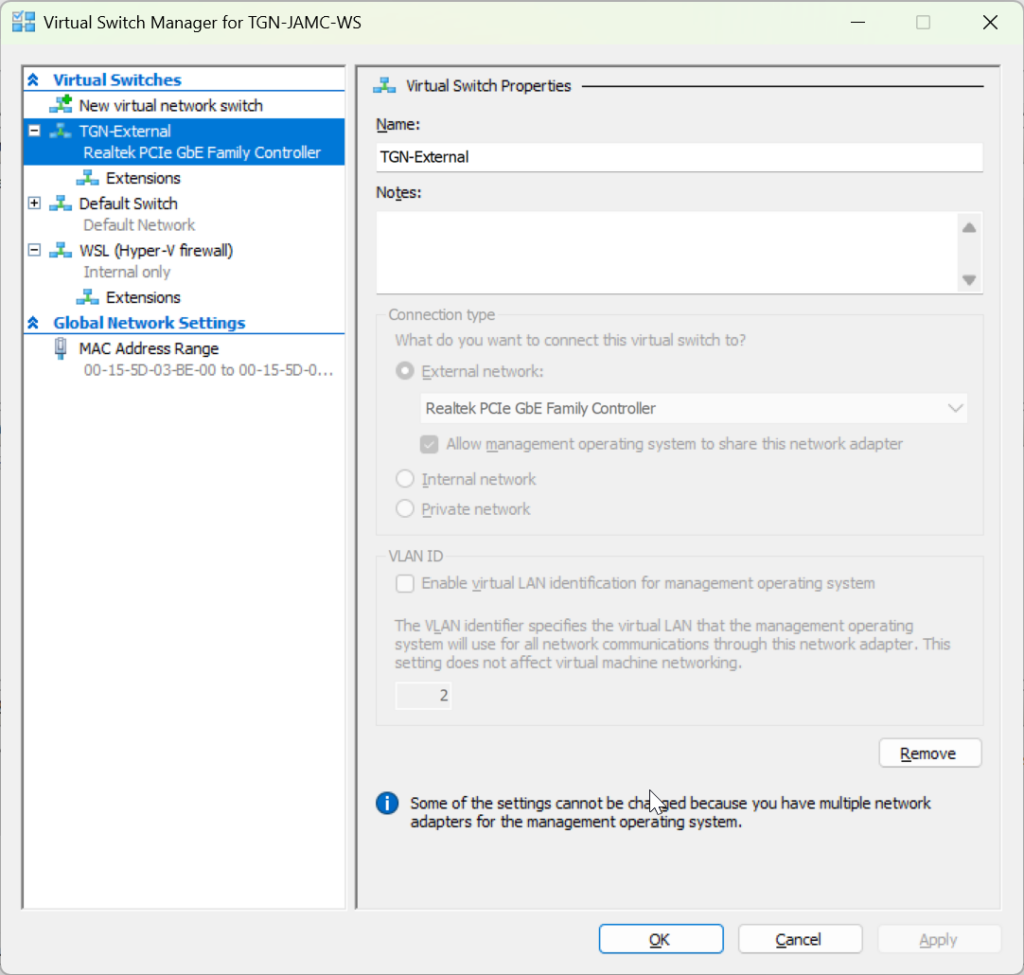
Here is a screen shot of the Hyper-V Virtual Switch Manager properties dialog, it shows I have a virtual switch external network connected to my ethernet adaptor on my Windows 11 computer
Create a Network Adapter that tags traffic with the correct VLAN ID
To get a VMWare Virtual Network to support VLAN Tagging you need to create and attach a Network Adapter to the External Switch with the correct VLAN ID.
Add-VMNetworkAdapter -ManagementOS -Name "NIC-VLAN99" -SwitchName "TGN-External" -Passthru | Set-VMNetworkAdapterVlan -Access -VlanId 99
You can list all the the Hyper-V NICs with Get-VMNetworkAdapter -All
Get-VMNetworkAdapter -All

Name                                           IsManagementOs VMName SwitchName             MacAddress   Status IPAddre
                                                                                                                sses
----                                           -------------- ------ ----------             ----------   ------ -------
Host Vnic 790E58B4-7939-4434-9358-89AE7DDBE87E True                  WSL (Hyper-V firewall) 00155D24F099 {Ok}
TGN-External                                   True                  TGN-External           00D861FCA356 {Ok}
Host Vnic C08CB7B8-9B3C-408E-8E30-5E16A3AEB444 True                  Default Switch         00155D03BE00 {Ok}
NIC-VLAN99                                     True                  TGN-External           00155D03BE07 {Ok}
Network Adapter                                False          U2404  TGN-External           00155D03BE14        {}
Network Adapter                                False          U2504  Default Switch         00155D03BE10        {}
Network Adapter                                False          U2510  TGN-External           00155D03BE03        {}
Network Adapter                                False          W11-PC                        00155D03BE01        {}
Get all the details of a VMNetworkAdapter based on name
PS C:\Users\james> Get-VMNetworkAdapter -All |  Where-Object { $_.name -eq 'NIC-VLAN99' } | fl


Name                                    : NIC-VLAN99
Id                                      : Microsoft:91E94B51-9058-441E-BEE7-725721C6A76C\8E33E0AF-EE0A-42BB-B803-EEE3A87B508E
IsManagementOs                          : True
ComputerName                            : TGN-JAMC-WS
SwitchName                              : TGN-External
SwitchId                                : 91e94b51-9058-441e-bee7-725721c6a76c
Connected                               :
PoolName                                :
MacAddress                              : 00155D03BE07
DynamicMacAddressEnabled                :
AllowPacketDirect                       :
NumaAwarePlacement                      :
MacAddressSpoofing                      : Off
AllowTeaming                            : Off
RouterGuard                             : Off
DhcpGuard                               : Off
StormLimit                              : 0
PortMirroringMode                       : None
IeeePriorityTag                         : Off
VirtualSubnetId                         : 0
DynamicIPAddressLimit                   : 0
DeviceNaming                            :
VMQWeight                               : 100
VMQUsage                                : 0
PacketDirectNumProcs                    :
PacketDirectModerationCount             :
PacketDirectModerationInterval          :
VrssEnabledRequested                    : True
VrssEnabled                             : True
VmmqEnabledRequested                    : True
VmmqEnabled                             : False
VrssMaxQueuePairsRequested              : 16
VrssMaxQueuePairs                       : 16
VrssMinQueuePairsRequested              : 1
VrssMinQueuePairs                       : 1
VrssQueueSchedulingModeRequested        : Dynamic
VrssQueueSchedulingMode                 : Dynamic
VrssExcludePrimaryProcessorRequested    : False
VrssExcludePrimaryProcessor             : False
VrssIndependentHostSpreadingRequested   : False
VrssIndependentHostSpreading            : False
VrssVmbusChannelAffinityPolicyRequested : Strong
VrssVmbusChannelAffinityPolicy          : None
RscEnabledRequested                     : True
RscEnabled                              : True
IPsecOffloadMaxSA                       : 512
IPsecOffloadSAUsage                     : 0
VFDataPathActive                        : False
MaximumBandwidth                        :
MinimumBandwidthAbsolute                :
MinimumBandwidthWeight                  :
BandwidthPercentage                     : 0%
MandatoryFeatureId                      :
MandatoryFeatureName                    :
Status                                  : {Ok}
IPAddresses                             :
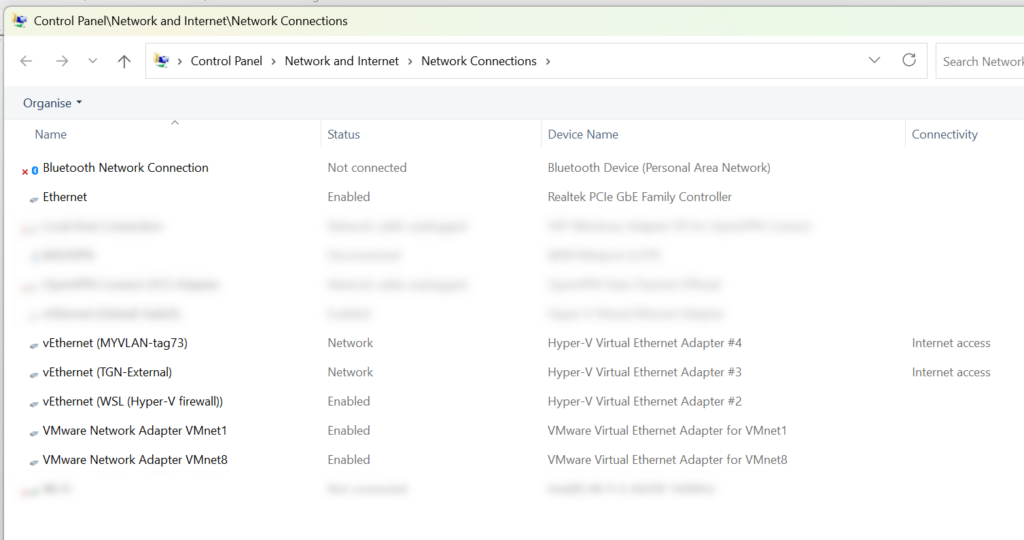
To Identify the Device Name to select in VMWare Virtual Network Editor. Use the Network Connections control panel or the Powershell Get-NetAdapter command:
# get an administrative powershell prompt
Get-NetAdapter

Name                      InterfaceDescription                    ifIndex Status       MacAddress             LinkSpeed
----                      --------------------                    ------- ------       ----------             ---------
Bluetooth Network Conn... Bluetooth Device (Personal Area Netw...      21 Disconnected 50-EB-71-75-1E-7A         3 Mbps
VMware Network Adapte...1 VMware Virtual Ethernet Adapter for ...      20 Up           00-50-56-C0-00-01       100 Mbps
VMware Network Adapte...8 VMware Virtual Ethernet Adapter for ...      18 Up           00-50-56-C0-00-08       100 Mbps
vEthernet (NIC-VLAN99)  Hyper-V Virtual Ethernet Adapter #4          65 Up           00-15-5D-03-BE-07         1 Gbps
vEthernet (Default Swi... Hyper-V Virtual Ethernet Adapter             44 Up           00-15-5D-03-BE-00        10 Gbps
vEthernet (TGN-External)  Hyper-V Virtual Ethernet Adapter #3          16 Up           00-D8-61-FC-A3-56         1 Gbps
vEthernet (WSL (Hyper-... Hyper-V Virtual Ethernet Adapter #2          61 Up           00-15-5D-24-F0-99        10 Gbps
Ethernet                  Realtek PCIe GbE Family Controller           11 Up           00-D8-61-FC-A3-56         1 Gbps
Create a Custom Virtual Network and Bridge it to the Hyper-V Virtual Ethernet Adapter
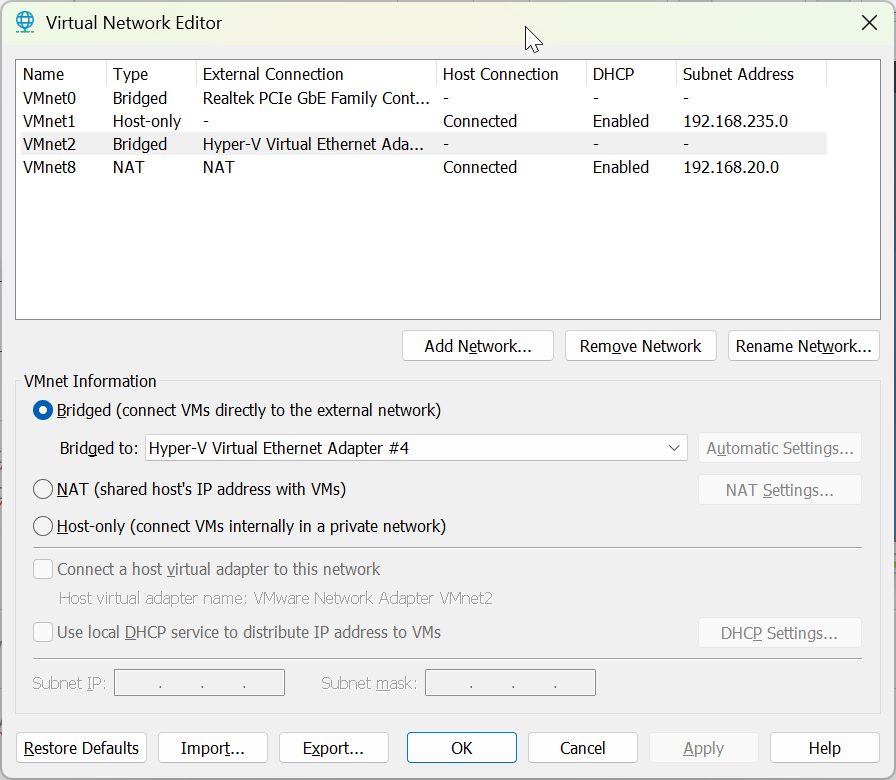
Create a custom Virtual Network Bridged to the Hyper-V Virtual Ethernet Adapter #4 created above.
Attach VM Network Adaptor to the Custom Virtual Network
Attach the VMWare workstation guest VM's network adapter to the custom VMnet2
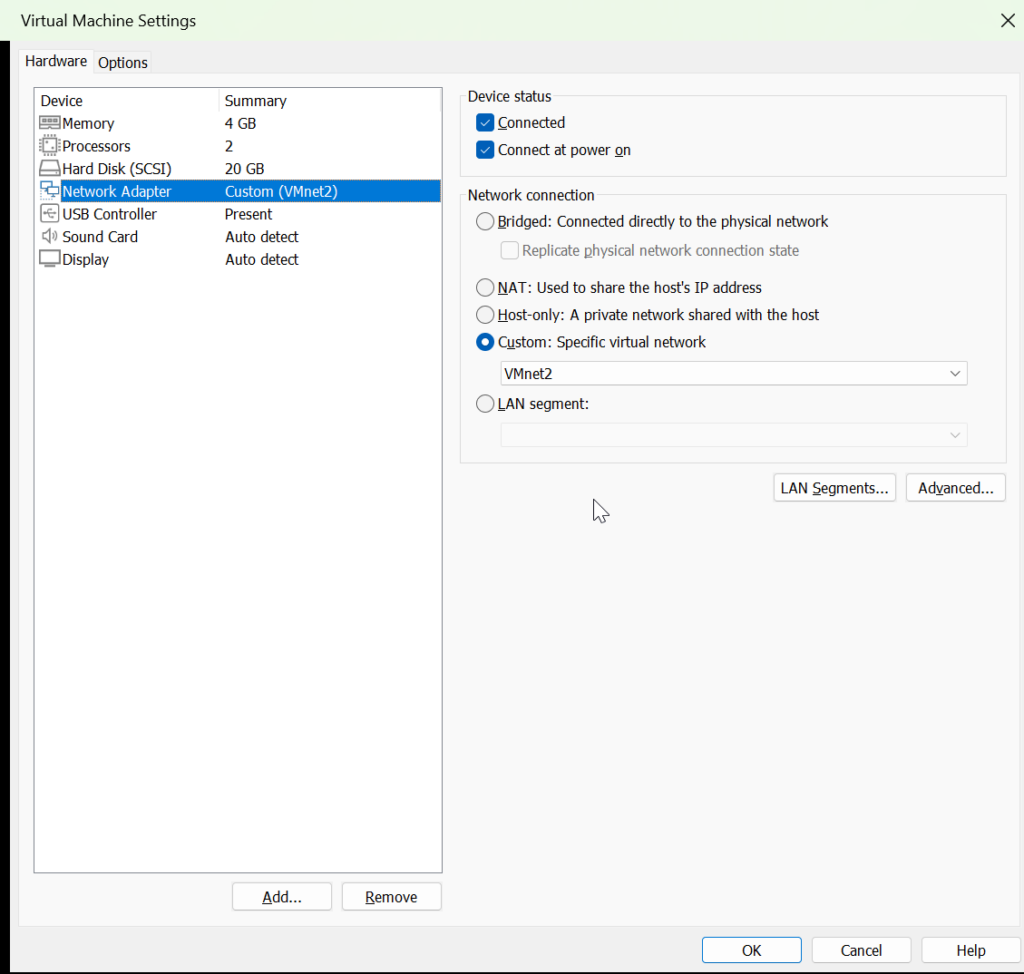
Because the VMnet2 Virtual Network is bridged to Hyper-V Virtual Ethernet Adapter #4 on VLAN ID 99. Any VM network adaptors connected to VMnet2 will share an external connection to the local network on the specified VLAN
0 Comments