
Trying to login to Microsoft 365 services with a Global Admin account and cannot login with the following error messages
My theory is the Authentication Methods have become messed up and expecting Certificate Auth instead of MS Authenticator or another method.
Trying "Sign in another way" leads to circular loop, with no option to choose other methods (such as SMS or email etc)
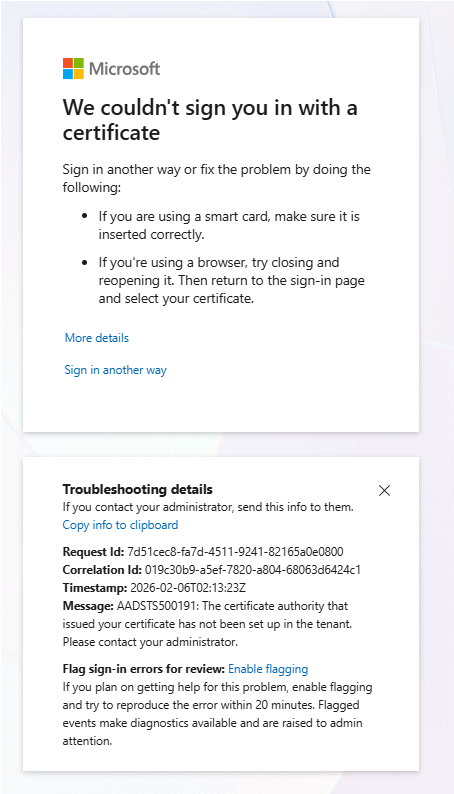
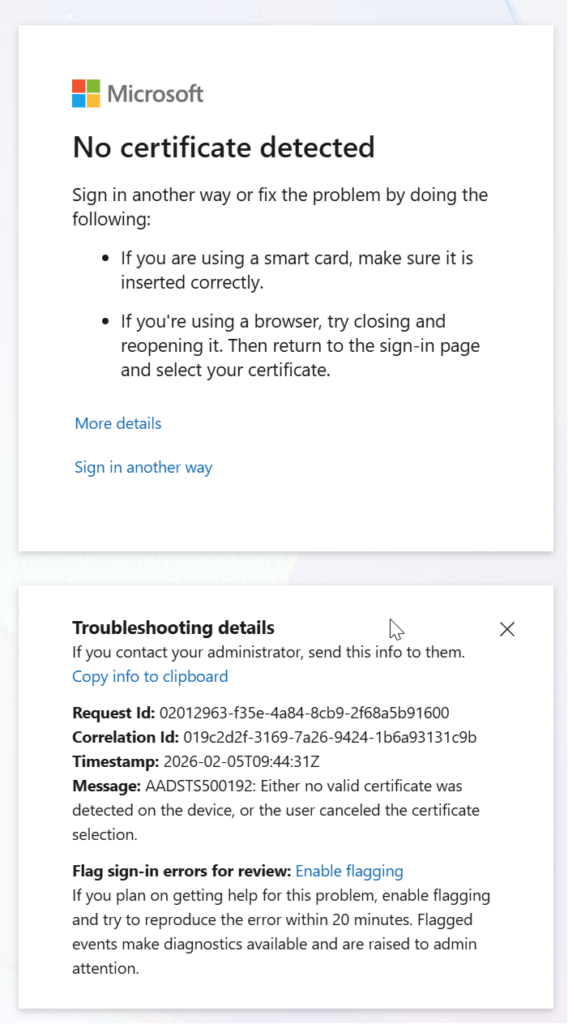
Raise a ticket with Microsoft Data Protection, the first fix they sent required login to the portal which won't work
We have excluded your account again. Could you please try to disable the certificate-based authentication?
To disable Certificate-Based Authentication in Entra ID (Azure AD) and stop using certificates for Azure AD/Microsoft 365, please follow these steps:
1. Sign in to the Microsoft Entra admin center.
2. Navigate to Protection > Authentication methods.
3. Select Certificate-based authentication and either disable it or remove specific users.
Please let me know if you need any further assistance.
So the next step was using Microsoft Graph and Powershell
Hello <YourName>,
Please try this method and let us know the outcome.
Your Global admin account has been excluded from the impacting policy for the next 24 hours only. During this time, as you are now encountering a sign in error pointing to “Certificate validation failed“ or “No certificate detected”, we advise you to follow the steps to disable the certificate-based authentication to prevent another account lockout:
Step 1. Open PowerShell: Please go to your Windows search bar and type “PowerShell”. Open the app as an administrator.
Step 2. Set current user: Run the following script:
Set-ExecutionPolicy -ExecutionPolicy RemoteSigned -Scope CurrentUser
Step 3. Install MS Graph: Copy-paste the following command into PowerShell to install the Microsoft Graph Module. This will take a few minutes.
Install-Module Microsoft.Graph -Scope AllUsers -Repository PSGallery -Force
Step 4. Connect to MS Graph: After installation is completed, copy-paste the following command to connect to Microsoft Graph:
Connect-MgGraph -Scopes "Policy.ReadWrite.AuthenticationMethod"
Step 5. Sign into Admin account: Once the command is completed, a pop-up window will appear. Please sign into your Global Admin account – the one that has been excluded from the policy within the next 24h.
Step 6. Disable Certificate Based Authentication: Return to PowerShell to disable the Certificate Based Authentication by running the two commands one by one:
a. copy-paste the following and hit enter:
$body = @{
"@odata.type" = "#microsoft.graph.x509CertificateAuthenticationMethodConfiguration"
"id" = "X509Certificate"
"state" = "disabled"} | ConvertTo-Json -Depth 5
b. copy-paste the following command (please check if the command is exactly as it appears below once pasted) and hit enter:
Invoke-MgGraphRequest -Method PATCH -Uri " https://graph.microsoft.com/v1.0/policies/authenticationMethodsPolicy/authenticationMethodConfigurations/x509Certificate" -Body $body -ContentType "application/json"
If there is an error message during Step 6 informing that at least one authentication method must be available/enabled, please run the below script to enable Microsoft Authenticator app. Run the two commands one by one:
Enable Microsoft Authenticator App:
a. copy-paste and hit Enter:
$body = @{
"@odata.type" = "#microsoft.graph.microsoftAuthenticatorAuthenticationMethodConfiguration"
"id" = "MicrosoftAuthenticator"
"state" = "enabled"} | ConvertTo-Json -Depth 5
b. copy-paste the following command (please check if the command is exactly as it appears below once pasted) and hit enter:
Invoke-MgGraphRequest -Method PATCH -Uri "https://graph.microsoft.com/v1.0/policies/authenticationMethodsPolicy/authenticationMethodConfigurations/microsoftAuthenticator" -Body $body -ContentType "application/json"
Once completed, run Step 6 again and afterwards try to sign into https://portal.azure.com
We recommend PowerShell Version 7 if there are any additional errors to update to the latest version: How to install PowerShell 7 | Microsoft Learn
0 Comments