
From the above Reddit thread
What you need is a bridge for your main interface and then set the bridge as a NIC in your VM.
I'll paste here a quick step by step that I wrote for some time ago but should still work (yes Aug 2026 still works!)
- Set up your main interface with static IP by disabling DHCP and adding IP alias (use the same IP you are connected to for easy results)
- Also uncheck "Autoconfigure IPv6"
- Test Changes and then Save them (important)
- Edit your main interface, remove the static IP address you set during step 1
- Don't click Test Changes
- Add a bridge, name it something like br0, select your main interface as a member and add the IP address that you had on main interface
- Select "Autoconfigure IPv6"
- Click Apply and then Test Changes
- It will take longer to apply than just setting static IP, you can even get a screen telling you that your NAS in offline but just wait - worst case scenario TrueNas will revert to old network settings.
- After 30sec you should see an option to save changes
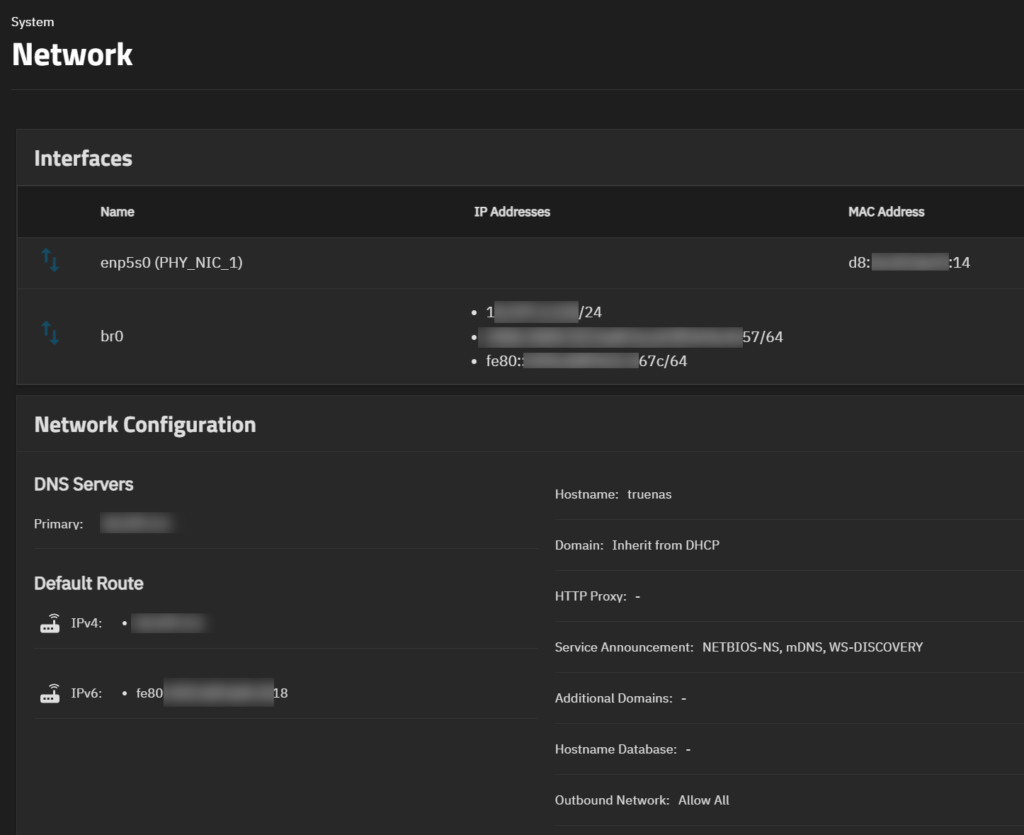
- After you save them you should see both your main interface and new bridge active but bridge should have the IP
After finishing the above enter your virtual machine NIC device settings and select the bridge (br0) and save your changes
Login to your VM and test
jimmy@u2604lts-new-web-test:~$ ping 1.1.1.1
PING 1.1.1.1 (1.1.1.1) 56(84) bytes of data.
64 bytes from 1.1.1.1: icmp_seq=1 ttl=52 time=10.6 ms
^C
--- 1.1.1.1 ping statistics ---
1 packets transmitted, 1 received, 0% packet loss, time 0ms
rtt min/avg/max/mdev = 10.648/10.648/10.648/0.000 ms
jimmy@u2604lts-new-web-test:~$ ping6 ipv6.google.com
PING ipv6.google.com (2404:6800:4006:805::200e) 56 data bytes
64 bytes from tzsyda-af-in-x0e.1e100.net (2404:6800:4006:805::200e): icmp_seq=1 ttl=112 time=22.9 ms
^C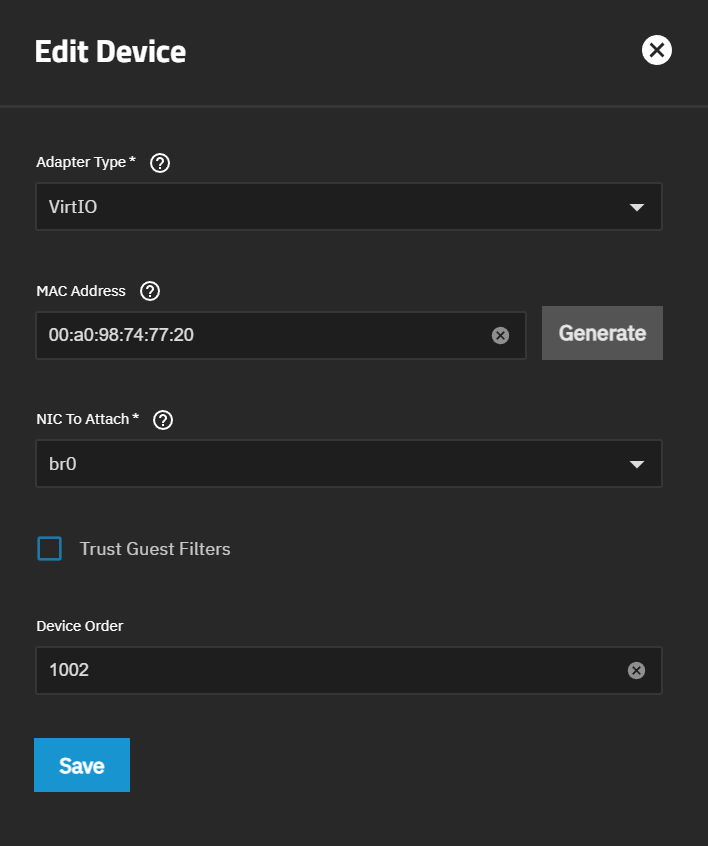
0 Comments