
Install the non snap version of CUPS
Copy /etc/cups-pdf.conf to /etc/cups/cups-pdf-[slug_name_here].conf
e.g.

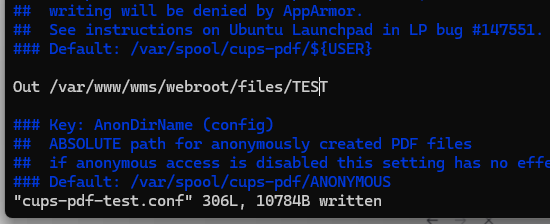
Open cups-pdf-test.conf and edit the Out folder
Apparmor Policy tweaks needed
Note: When you change the output folder, and try to print, you may be stopped by apparmor. You will probably need to modify the apparmor policy to allow the write to the custom directory https://askubuntu.com/questions/1263902/how-to-quickly-modify-cups-pdf-printer-output-folder-setting
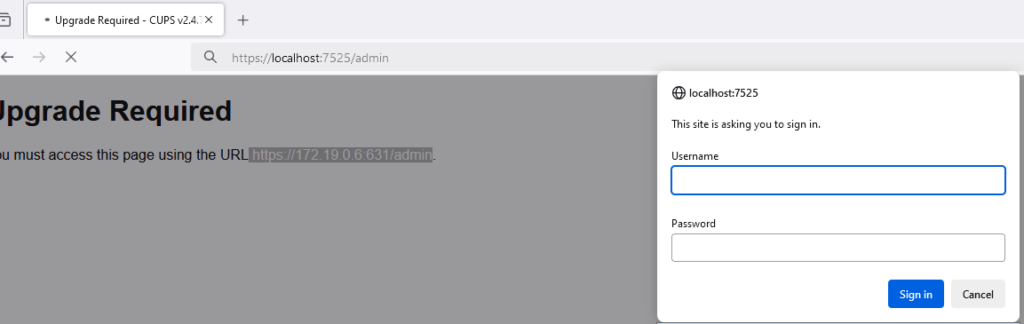
Login to the CUPS website this is usually https://localhost:631/admin. You need to login as a member of the lpadmin group or root
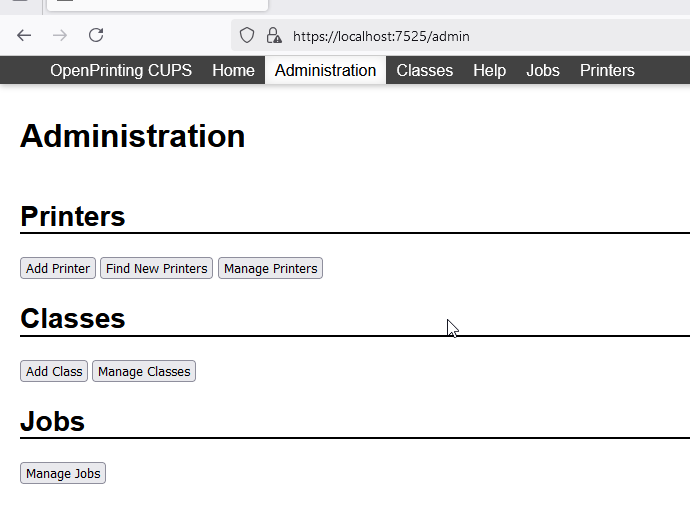
On the Administration tab click Add Printer
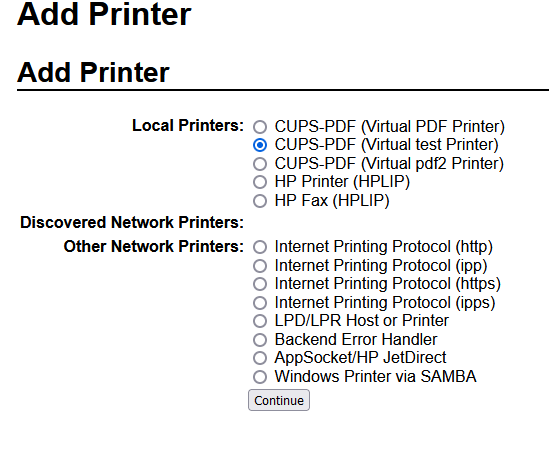
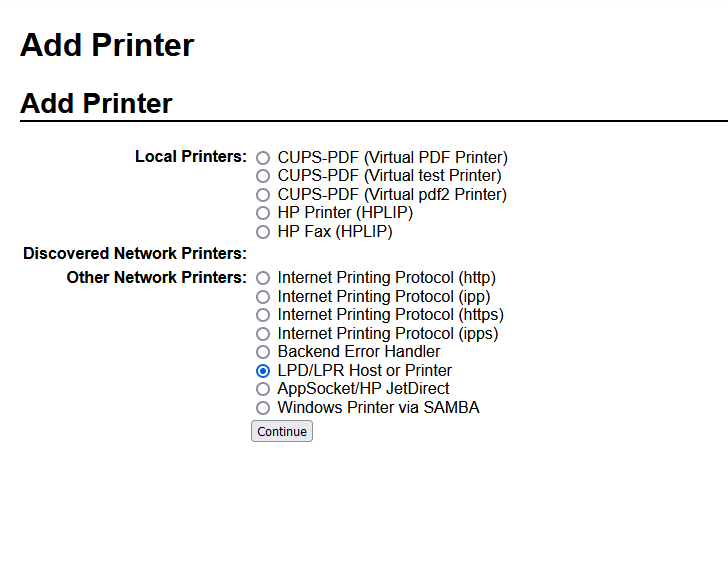
You should see a local CUPS-PDF printer with (Virtual <slug_you_gave_cups_pdf_conf> Printer)
e.g. CUPS-PDF (Virtual test Printer)
Update: 2026-05-09 On Ubuntu 26.04 LTS I created an /etc/cups/cups-pdf-prod.conf but could not see the CUPS-PDF (Virtual prod Printer) in the list so jump to below to add the cups-pdf:/prod queue manually
Update 2: I found if I ran sudo aa-complain /usr/lib/cups/backend/cups-pdf the cups-pdf-<slug>.pdf printers would appear so probably just need to modify the apparmor policy to allow this.
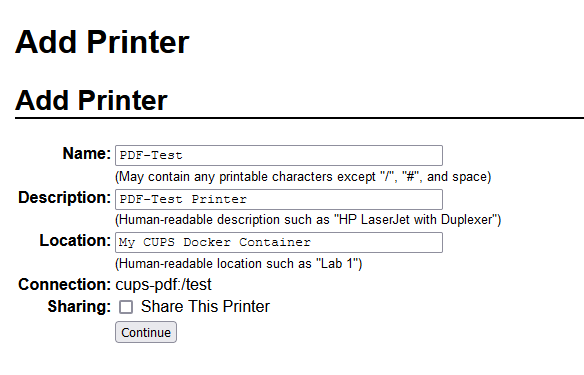
Instead of choosing a Make upload a Cups PDF Printer Definition file you can find this in /etc/cups/ppd/PDF.ppd or
run driverless against the default Cups PDF Printer as follows
driverless http://localhost:631/printers/PDF > ~/PDF.ppd
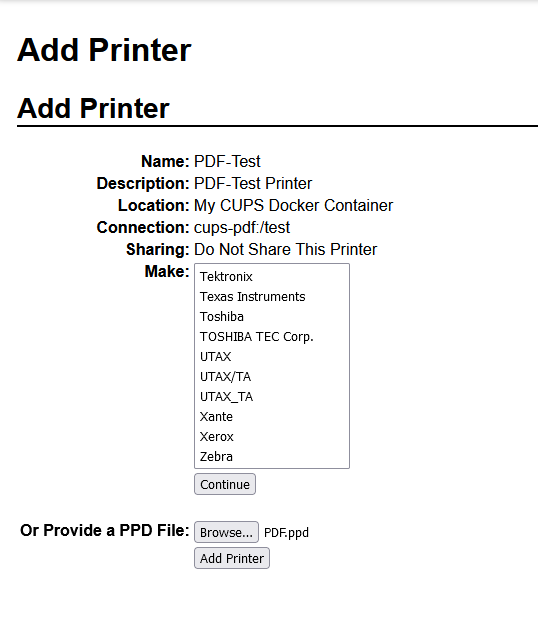
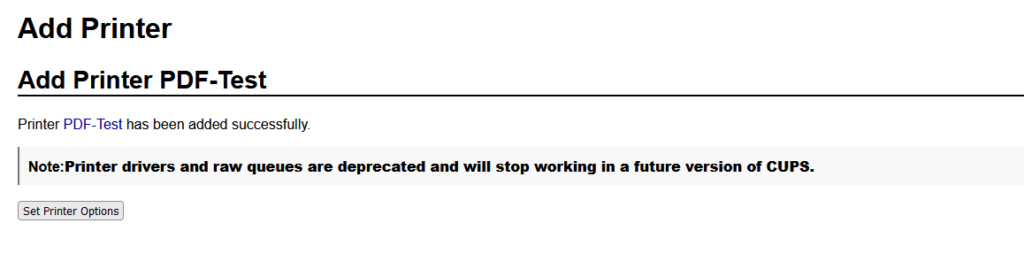
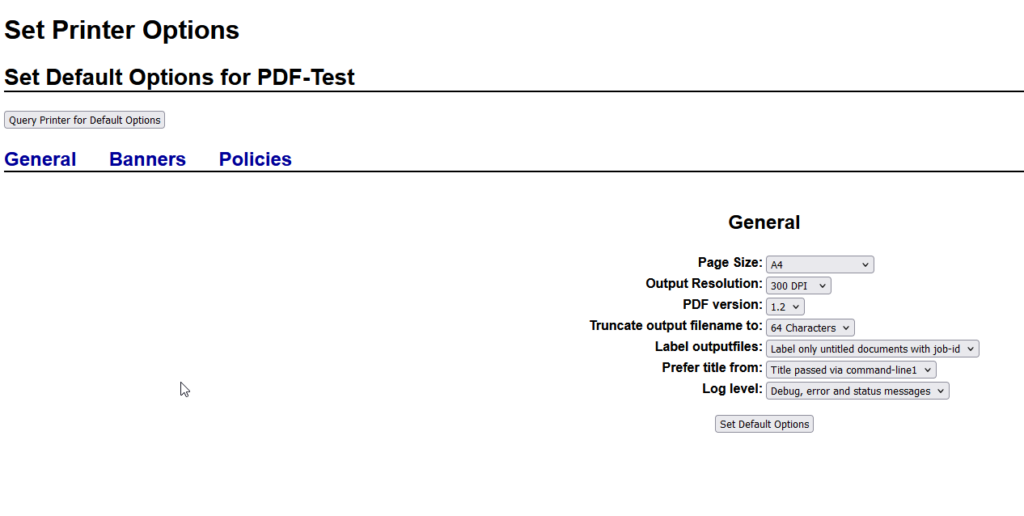
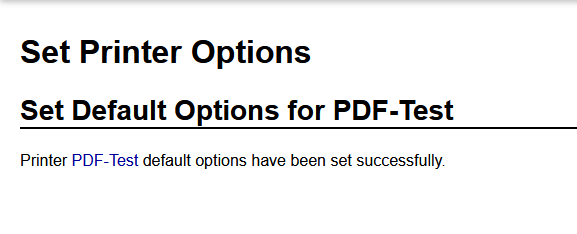
Modify or just Set the Defaults
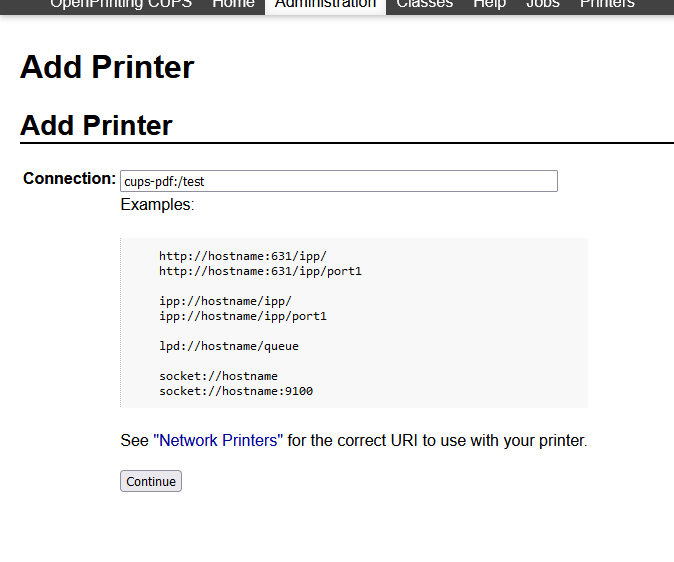
Manually add the correct cups-pdf:/<custom> print queue
Just tried to do the above with the Ubuntu 26.04 LTS and couldn't find the "Local Printer" in the list
Instead of selecting Local Printers (if the copied cups-pdf-test.conf doesn't show up). You can also use AppSocket/HP JetDirect to specify the url to the printer as follows
0 Comments