
Fail
If you use Google or AI you might think that you have to send a file to Synology by specifying the full path from the root directory of the Synology as follows:
scp .\toggen_vector_blue.png [email protected]:/volume1/Backup/upload/
C:\WINDOWS\System32\OpenSSH\scp.exe: dest open "/volume1/Backup/upload/": No such file or directory
C:\WINDOWS\System32\OpenSSH\scp.exe: failed to upload file ./toggen_vector_blue.png to /volume1/Backup/upload/
Win
But trying on several Synology NAS's running DSM 7.3.2-86009 Update 4 the actual path starts from /volume1 so to copy a file to /volume1/Backup/upload on Synology requires removing /volume1 and specifying the the path as follows:
scp .\toggen_vector_blue.png [email protected]:/Backup/upload/
toggen_vector_blue.png                                                                100%   22KB 290.0KB/s   00:00
Example of scp to Home Directory
To copy it to your home directory on the Synology again it's relative to /volume1
scp .\toggen_vector_blue.png [email protected]:/homes/tgneng/
toggen_vector_blue.png                                                                100%   22KB 301.9KB/s   00:00
# or
scp .\toggen_vector_blue.png [email protected]:/home/
toggen_vector_blue.png                                                                100%   22KB 301.9KB/s   00:00
Example command line when running a custom SFTP / SCP port on the Synology NAS
scp -P 8022 .\toggen_vector_blue.png [email protected]:/tgnshare/
toggen_vector_blue.png                                                                100%   22KB  10.8MB/s   00:00
Sometimes you should just ignore AI
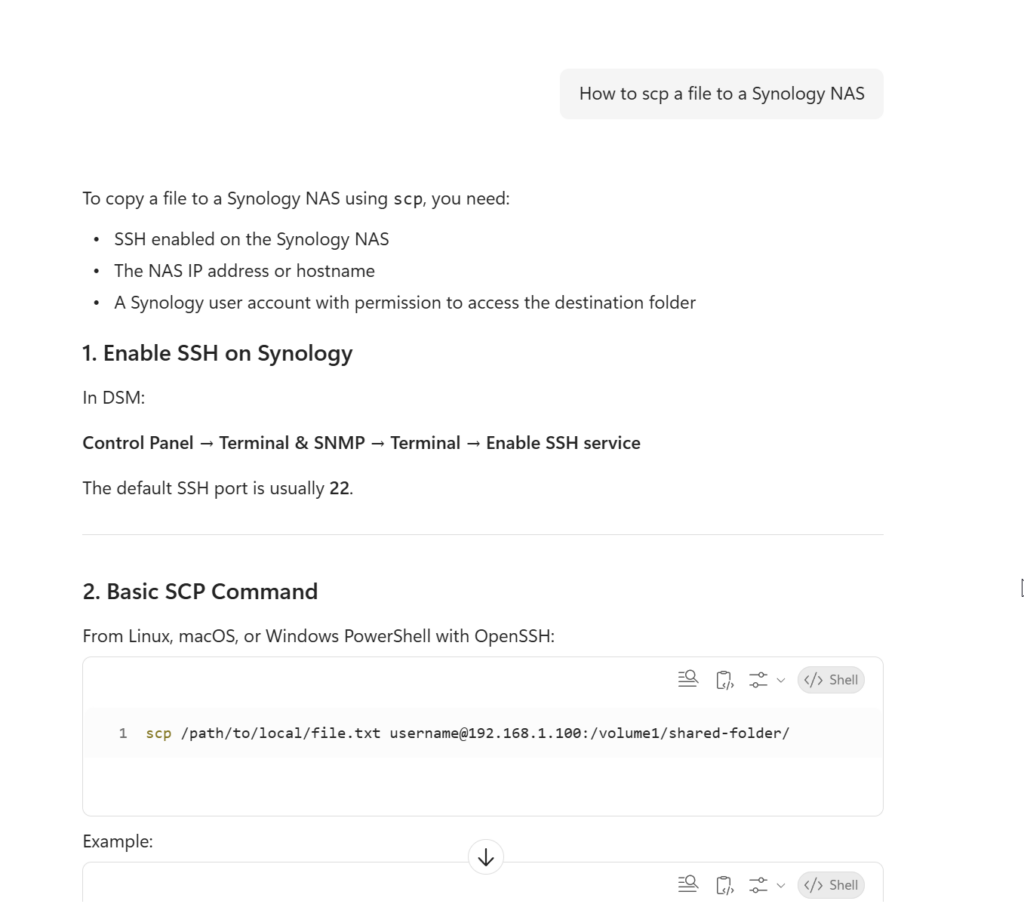
Something has changed and the accepted answers are wrong. This is CoPilot's advice...
You no longer have to specify the SCP path from /volume1/shared_folder/sub_folder/file
You only need to specify /shared_folder/sub_folder/file
0 Comments